Free Desktop Tool for CSSF Outsourcing Compliance

Direct download or GitHub folder with all the releases
Want to have a small preview? Online demo here
If you work in risk management or compliance at a Luxembourg financial institution, you know the challenge: CSSF Outsourcing Circular & EBA Outsourcing guidelines require detailed tracking of every outsourcing arrangement. We're talking about 73 different pieces of information per supplier, from basic contract details to complex risk assessments.
Spreadsheets become unwieldy. Manual tracking is error-prone. And when audit time comes, pulling together the right reports can take days.
I built the Supplier Outsourcing Register to solve exactly this problem. It's a free, open-source desktop application that helps you stay compliant without the headache. It runs offline in your computer or company server and your IT team can verify the code before deployment.
What Does This Tool Do?
Think of it as a specialized database designed specifically for CSSF & EBA Guidelines compliance. Instead of juggling Excel files and trying to remember which fields are mandatory, you get:
- A complete register of all your outsourcing arrangements
- Built-in CSSF compliance - Each filed is referenced against CSSF Outsourcing Circular
- Dashboard analytics showing your compliance status at a glance
- Professional reports you can export for regulators or management
- Team collaboration - multiple people can work with the same data
- Data protection with backup and restore features
Everything runs on your own computer. No cloud services, no subscriptions, no data leaving your organization.
Who Built This and Why Share It for Free?
I am a Risk Manager working in Luxembourg's financial sector with no coding background. IddiLabs is not a software company, not a VAT registered individual, not a team of developers, it is my AI Learning Project.
I believe we're at the beginning of a shift where domain expertise becomes the differentiator as technical implementation becomes increasingly automated. A risk manager who effectively use AI will be more valuable than one who does not.
I'm sharing projects, AI workflows and guides publicly for my upskilling and career development.
Important: Understanding This Tool
Before you download and start using this application, let's be clear about what it is and what it isn't.
What This Tool Is:
- A desktop application that helps you organize CSSF outsourcing data more effectively than spreadsheets
- A visual and reporting layer that makes compliance tracking easier
- A free, open-source project built by someone who works in risk/compliance and understands the pain points
What This Tool Isn't:
- An enterprise software solution with SOC 1 or SOC 2 certification
- A product from a registered software company with formal support contracts
- A replacement for your official compliance processes
Practical Usage Recommendations:
Use this tool internally as your working environment - the place where you:
- Organize your supplier information
- Track pending items
- Prepare for audits
- Generate internal reports for management
When dealing with external parties (regulators, auditors, external consultants):
- Export the data to Excel or PDF
- Share these professional-looking reports
- Treat the application as your internal preparation tool, not as your system of record
Think of it this way: you wouldn't show auditors your messy Excel workbook with all your notes and draft calculations. You'd clean up the data and present it professionally. This tool helps you do exactly that - organize everything internally, then export polished reports for external use.
About Compliance and Certification:
This application is not certified for any compliance framework. It's an offline tool that never sends your data anywhere, never connects to the cloud, and stores everything locally. While it follows security best practices (password hashing, access controls, database integrity), it hasn't undergone formal certification processes (SOC1/SOC2).
If auditors or regulators ask about your compliance tools, focus the conversation on the outputs (the Excel and PDF reports that meet CSSF requirements) rather than the application itself. The tool is simply how you organize the data before creating those compliant reports.
Installing the Application
For Windows Users
- Download the installer
- Get the file named
Supplier Outsourcing Register Setup 0.1.0.exe - It's about 150MB in size
- Direct download or GitHub folder with all the releases
- Want to have a small preview? Online demo here
- Get the file named
- Run the installation
- Double-click the downloaded file
- Windows might show a security warning saying "Windows protected your PC"
- This is normal for free software that hasn't been code-signed and I'm not a company.
- Click "More info" then "Run anyway"
- Follow the setup wizard
- Choose where to install (default location is fine)
- The installer will create shortcuts on your desktop and Start Menu
- Installation takes about a minute
- Launch the application
- Double-click the desktop shortcut "Supplier Outsourcing Register"
- The first time you open it, the app creates its database and adds 5 sample suppliers so you can see how it works
Getting Started: Your First Supplier
When you first open the application, you'll see a clean interface with several tabs:

The Register Tab
This is your main workspace - a table showing all your suppliers. Each row can be expanded to see full details across four organized sections:
- Basic Information - Contract dates, what the service does, whether it's critical
- Provider Details - Company information, addresses, contact details
- Cloud Services - Only appears for cloud providers, tracks deployment models and data locations
- Critical Functions - Only appears for critical suppliers, tracks risk assessments, audits, and regulatory notifications

Adding a New Supplier
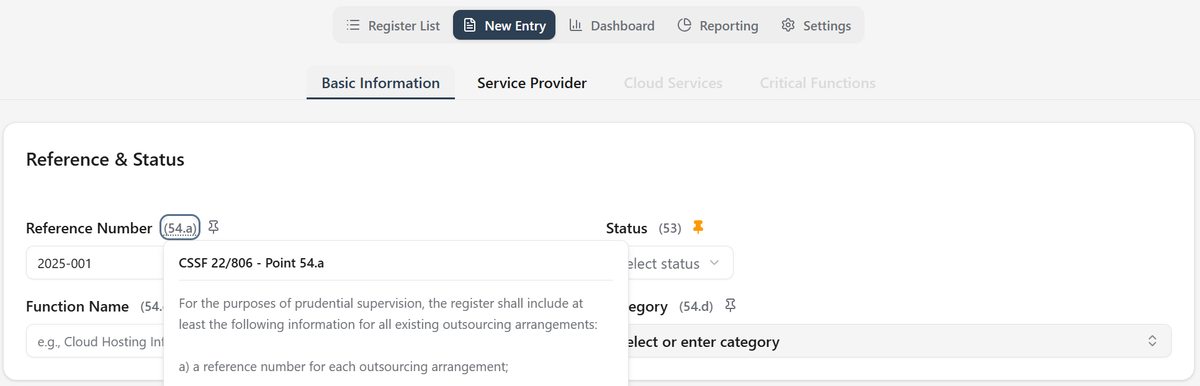
Click the "New Entry" tab to open a comprehensive form. The beauty of this tool is that it guides you through exactly what information is needed:
- Reference numbers in parentheses (like "54.e") show you exactly which CSSF requirement each field addresses
- Amber pin buttons let you mark fields as "pending" if you don't have the information yet
- Save supplier will mark as "pending" any missing information.
You can save partially complete suppliers as drafts. The tool remembers what's missing and lets you come back to finish later.
Understanding the Dashboard
The Dashboard tab gives you a compliance overview:
- Alerts for overdue assessments or upcoming audits.
- Key metrics like how many suppliers are critical, how many use cloud services and number of pending fields in the register
- Risk distribution showing where your exposure lies
- Geographic breakdown of where your data and services are located
All these numbers update automatically as you add and edit suppliers. No manual calculations needed. The Dashboards refreshes based on the active filters set in the Register List Tab.
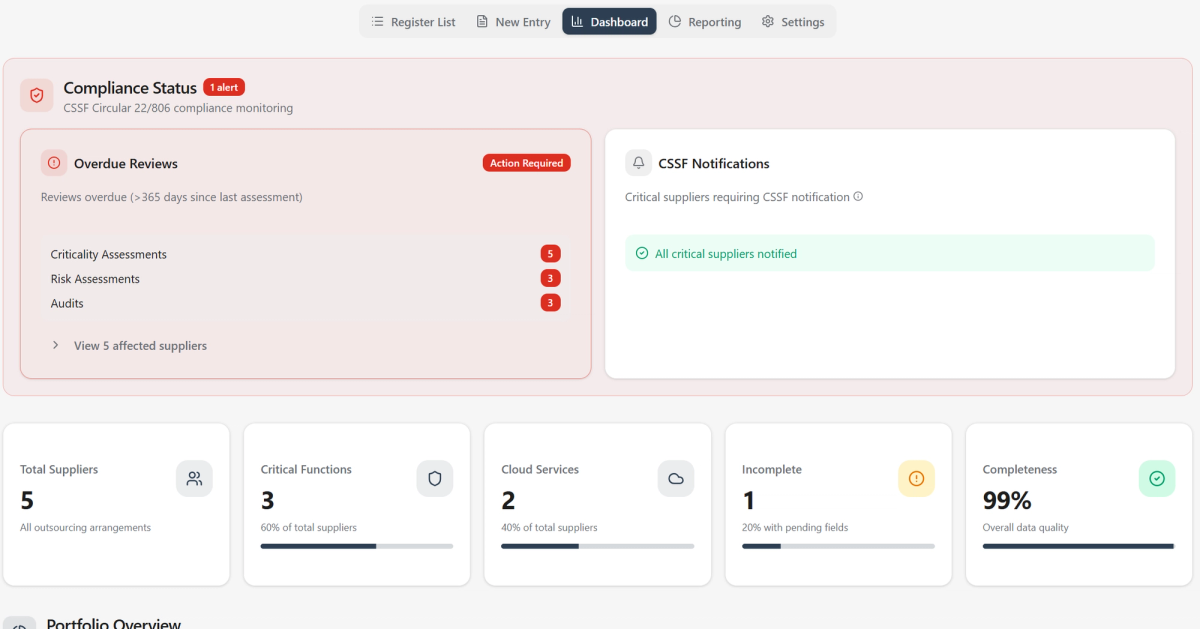
The above screenshot is just the first overall Dashboards view, other 9 charts are included in this section.
Key Features Explained
Smart Validation
The tool knows the difference between:
- Mandatory fields - required for all suppliers
- Cloud-specific fields - only required when you select "Cloud" as the category
- Critical supplier fields - only required when you mark a supplier as critical
This means you're never asked for information that doesn't apply to a particular arrangement.
Pending Fields
Can't find the LEI number right now? Don't have the last audit date handy? Click the amber pin button next to any field to mark it as "pending." The tool will save your supplier without complaining about the missing information.
Later, you can see which suppliers have pending fields (they show an amber badge) and come back to complete them.

Filtering and Search
Need to find all critical suppliers? All cloud services? Suppliers with contracts ending in the next 90 days?
Use the filter panel at the top of the register. You can combine multiple filters and search across all fields simultaneously. Your search terms get highlighted in yellow when you expand a supplier's details, making it easy to find exactly what you're looking for.

Reporting and Issue Tracking
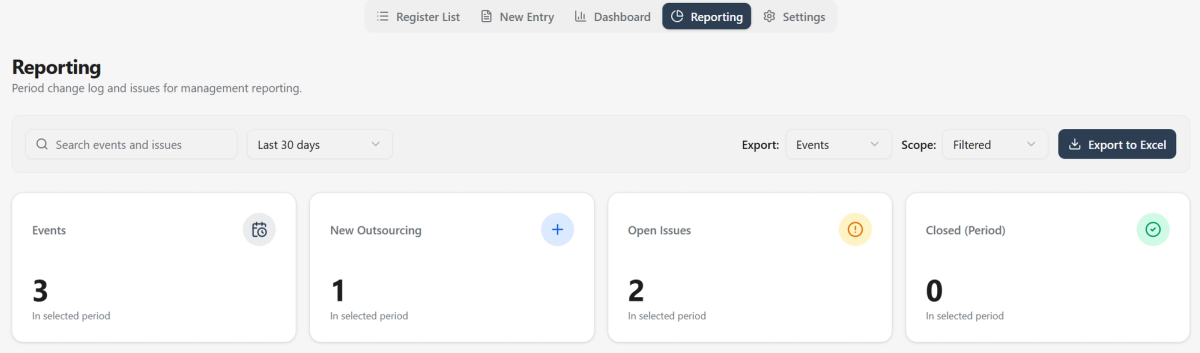
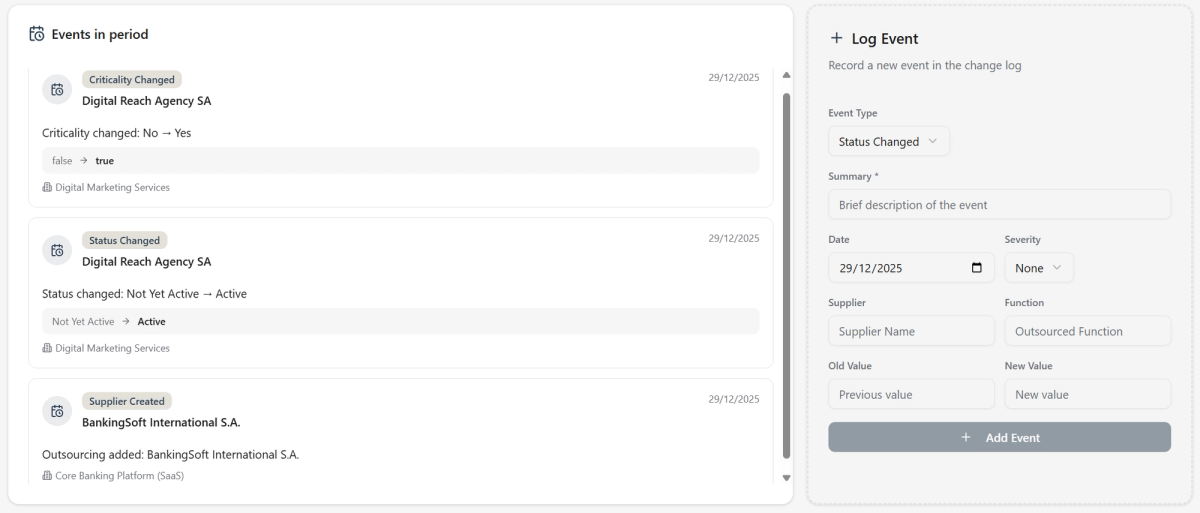
The Reporting tab keeps an automatic & custom change log of major events:
- When suppliers become active or critical
- When risk levels change
- When contracts start, renew, or end
- Custom events added by the user
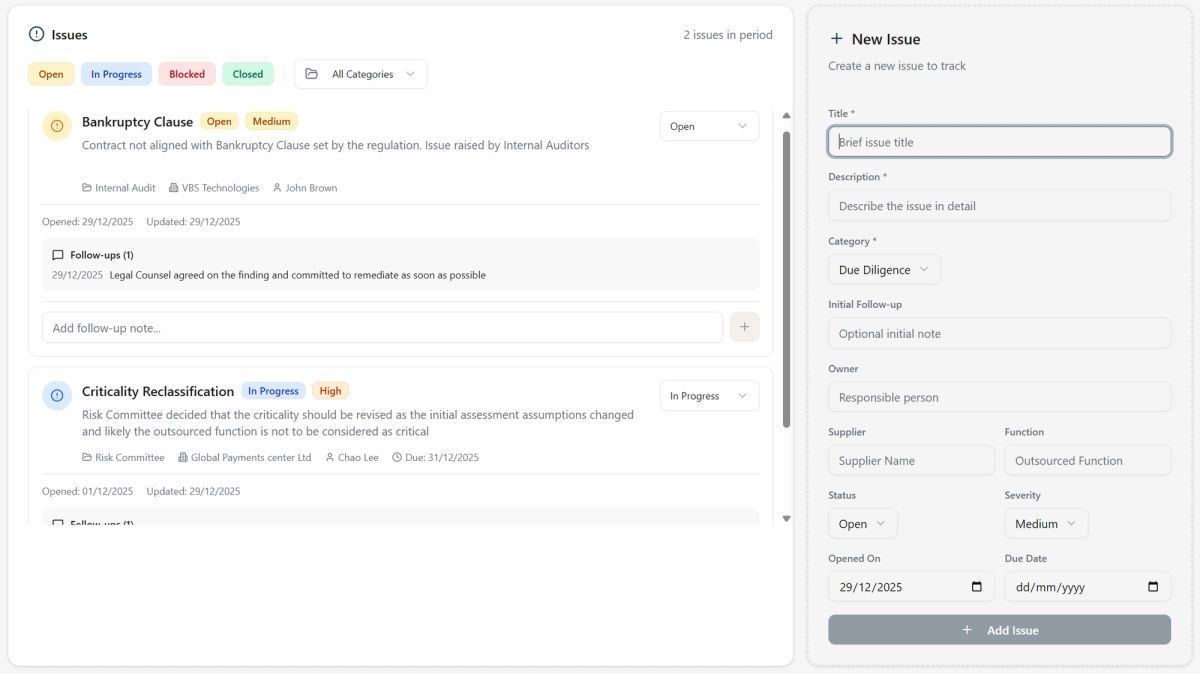
You can also track compliance issues:
- Record problems that need attention
- Assign them to team members
- Set due dates and severity levels
- Add follow-up notes as issues develop
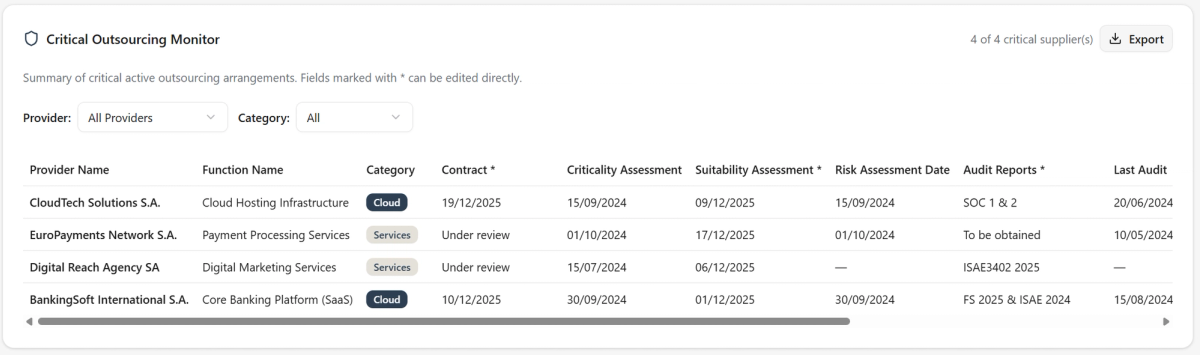
There's even a Critical Outsourcing Monitor that gives you a focused view of your most important Outsourcings, with inline editing for tracking contracts and additional assessments.
Export Capabilities
Generate professional reports in seconds:
- Excel exports - Choose between compact (8 columns) or full detail (all fields)
- PDF reports - Create formatted summaries for presentations and easy share
- Change log exports - Document all supplier updates
- Issue tracker exports - Share compliance issue status
All exports respect your current filters, so you can create targeted reports for specific categories or time periods.
Setting Up for Team Use
One of the most powerful features is multi-user access. Here's how to set it up so your entire team can have access:
The Concept
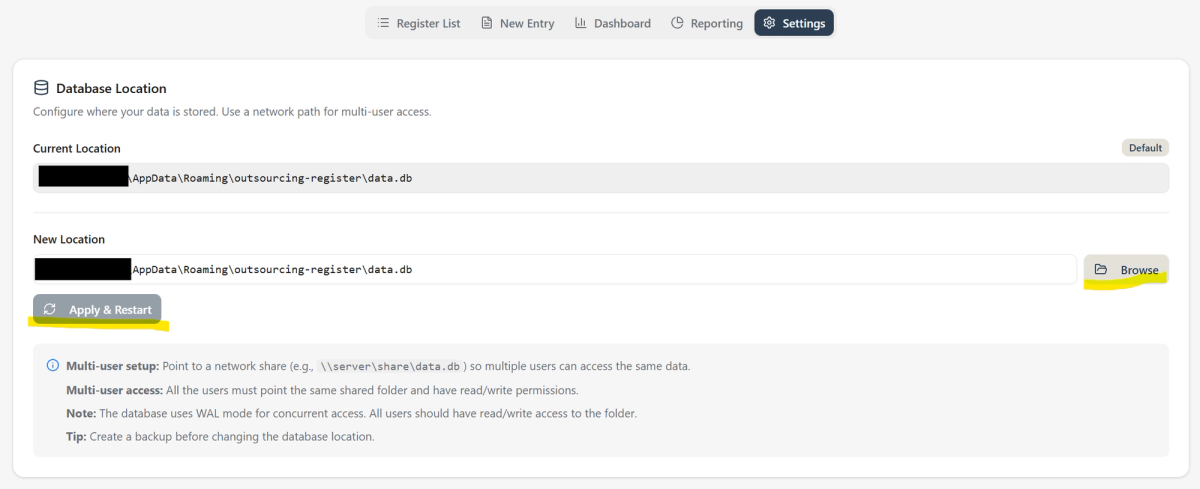
The application stores all data in a single database file. By default, this file lives on your computer and only you can access it. But you can move that database to a shared network location so multiple people can access the same data.
Step-by-Step Setup
1. Prepare a shared network folder
- Your IT department should create a folder on your network (like
\\CompanyServer\OutsouringRegisterData\) - Make sure all team members have read/write access to this folder
2. Configure the first user (Admin setup)
- Install the application on your computer
- Add your suppliers and set up the register the way you want it
- Go to the Settings tab
- Click on "Database Location"
- Enter the network path:
\\CompanyServer\OutsouringRegisterData\ - Important: Check the box "Copy existing data to new location"
- Click "Apply and Restart"
- The app will copy your data to the network and restart
3. Configure additional users
- Each team member installs the application on their computer
- They go to Settings → Database Location
- They enter the same path:
\\CompanyServer\OutsouringRegisterData\ - They do NOT check "Copy existing data" (the data is already there)
- Click "Apply and Restart"
Now everyone is working with the same register. Changes made by one person appear immediately for everyone else.
Adding User Permissions (Optional)
If you want to control who can edit data versus who can only view it:
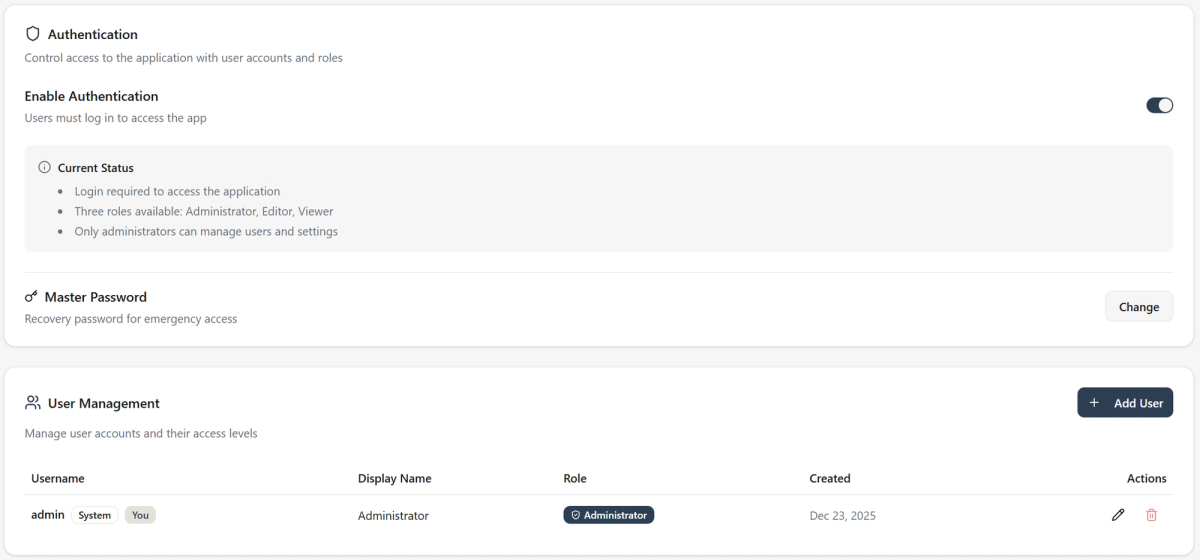
- Go to Settings → Security Settings
- Enable authentication
- Log in with the default credentials (username:
admin, password:admin) - Immediately change these default credentials in User Management
- Create accounts for your team members with appropriate roles:
- Viewers can see all data but cannot make changes
- Editors can add, edit, and delete suppliers
- Admins can do everything plus manage users
Important Notes for Teams
- User Permissions: Only the admin can create/modify accounts
- The database uses file locking to prevent conflicts, but it's designed for small teams (up to 10 users)
- Changes are saved immediately - there's no "sync" button to remember
- Everyone needs access to the same network folder
- If someone is offline or can't reach the network share, they won't be able to use the application until connectivity is restored
Protecting Your Data
Backup System
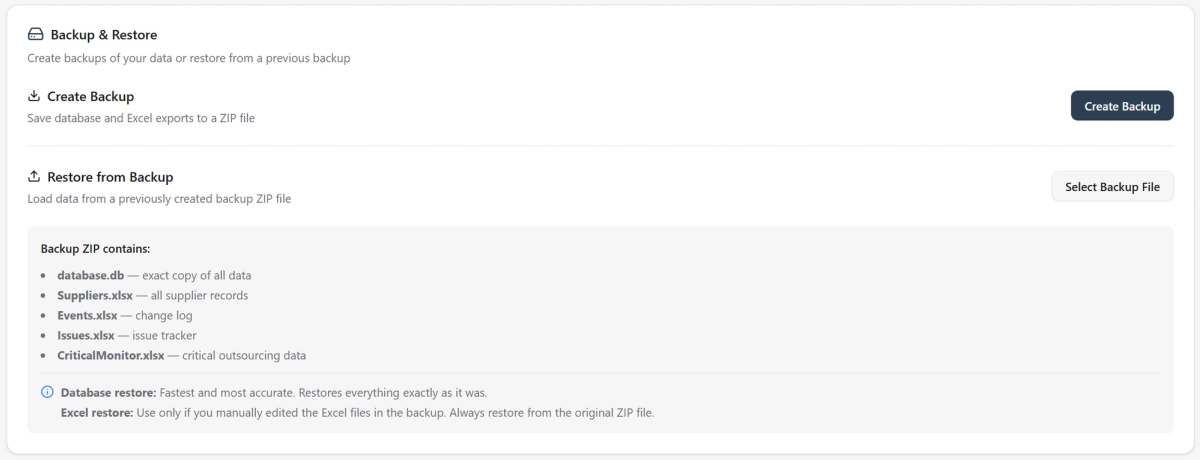
The application includes a comprehensive backup feature:
Creating a Backup:
- Go to Settings → Backup & Restore
- Click "Create Backup"
- Choose where to save it (USB drive, external hard drive, secure network location)
- The app creates a ZIP file containing:
- Your complete database
- Excel exports of all your data (suppliers, events, issues)
Default filename: OutsourcingRegister_Backup_2025-12-23.zip
Restoring from Backup (only for administrators):
If something goes wrong, you can restore your data:
- Go to Settings → Backup & Restore
- Click "Select Backup File"
- Choose which restore method:
- From Database - Fast and exact (use this most of the time)
- From Excel - Use only if you edited the Excel files in the backup
- Select what to restore:
- All data (default)
- Or pick specific parts (just suppliers, just events, etc.)
- Confirm and the app will restore your data
The page will reload automatically to show your restored information.
Backup Best Practices
- Regular schedule: Create backups weekly, or before making major changes
- Multiple locations: Keep backups in different places (one onsite, one offsite)
- Test restores: Occasionally test restoring from a backup to make sure it works
- Before updates: Always create a backup before updating to a new version of the application
Understanding the Interface
The Header
Shows:
- Current view (Register, New Entry, Dashboard, etc.)
- If authentication is enabled, your username and role
- The application name and logout button
The Main Views
Register List: Your working view. Filter, search, add, edit, duplicate, or delete suppliers here.
New Entry: The form for adding new outsourcings. Four organized tabs make it easy to enter all required information.
Dashboard: Analytics and compliance overview. Great for management reports and outsourcing governance.
Reporting: Track changes over time, manage compliance issues, prepare reporting for the management and monitor critical suppliers.
Settings: Configure database location, manage backups, set up authentication, and manage users.
Tips for Daily Use
Starting Your Day
- Open the Dashboard to see any compliance alerts
- Check for upcoming renewals or overdue assessments
- Review any open issues in the Reporting tab
Adding a New Contract
- Click "New Entry"
- Fill in what you know
- Use the amber pin to mark fields you'll complete later
- Save as draft or save as complete with amber marks (depending on how much information you have)
Regular Maintenance
- Weekly: Review and complete pending fields
- Monthly: Export a full backup
- Quarterly: Review the Dashboard for compliance gaps
- Annually: Export a complete report before your annual audit
Before an Audit
- Go to Dashboard and review all compliance indicators
- Use filters to find any problematic suppliers (overdue assessments, missing notifications, etc.)
- Complete all pending fields
- Export a full Excel report for the auditor
- Create a PDF summary for the audit committee
Common Questions
Do I need to be online to use this? No. The application works completely offline. Your data stays on your computer (or your company's network if you're using team access).
What if I delete a supplier by mistake? As long as you have a recent backup, you can restore it. This is why regular backups are important.
Can I import data from Excel? The current version allows exporting to Excel, importing from excel is currently possible but not yet properly tested and refined, therefore I'd recommend to restore using the DB import function for restoring backup and inputting manually any outsourcing.
What happens to my data when I uninstall? The database file remains on your computer (in AppData/OutsourcingRegister) even after uninstalling. If you want to completely remove it, you'll need to delete that folder manually.
Is my data secure? Your data never leaves your organization. The application doesn't connect to the internet or send data anywhere. For additional security, you can enable the authentication system to control who can access or modify your data.
What if I find a bug or need help? The project is open source on GitHub. You can report issues there, check the documentation for troubleshooting steps or ask support from your IT.
System Requirements
Windows:
- Windows 10 or Windows 11 (64-bit)
- 4GB RAM minimum (8GB recommended)
- 500MB free disk space
- Local Network access (only for multi-user setup)
Final Thoughts
CSSF compliance doesn't have to be complicated. This tool handles the technical requirements so you can focus on actually managing your outsourcing relationships.
It's designed to grow with your needs:
- Start simple with just yourself
- Add team access when you need it
- Enable authentication if you want access control
- Export data in multiple formats for different audiences
The best part? It's completely free and open source. No licensing fees, no per-user costs, no surprise charges.
Download it, try it out with the sample data, and see if it makes your compliance work a little bit easier.
License: MIT (Free for commercial and personal use)
Built by a compliance professional, for compliance professionals. Questions? Issues? Suggestions? Send me an email to contact@iddi-labs.com or contact me in Linkedin.
Stay Updated
Get product, automation updates and blog articles. No spam, ever. You'll hear from me max 3-4 times a month.
Related Articles

PolicyHub: Free local Tool for Policy & Procedure Management
Free offline desktop tool for regulated entities to manage policy and procedure lifecycles. Track versions, document, review schedules, ownership, generate reports, dashboards and enable team access.

IssueRegister: Free Desktop Tool for Organisational Issue Tracking
Free offline desktop tool for organisations to track issues across departments. Role-based access, file attachments, audit logging, dashboards, and team collaboration.